This Stardew Valley multiplayer save editor guide explains how a co-op farm is organized, where the host
save lives, how farmhands and cabins fit together, and how to test a controlled edit without losing the
working farm.
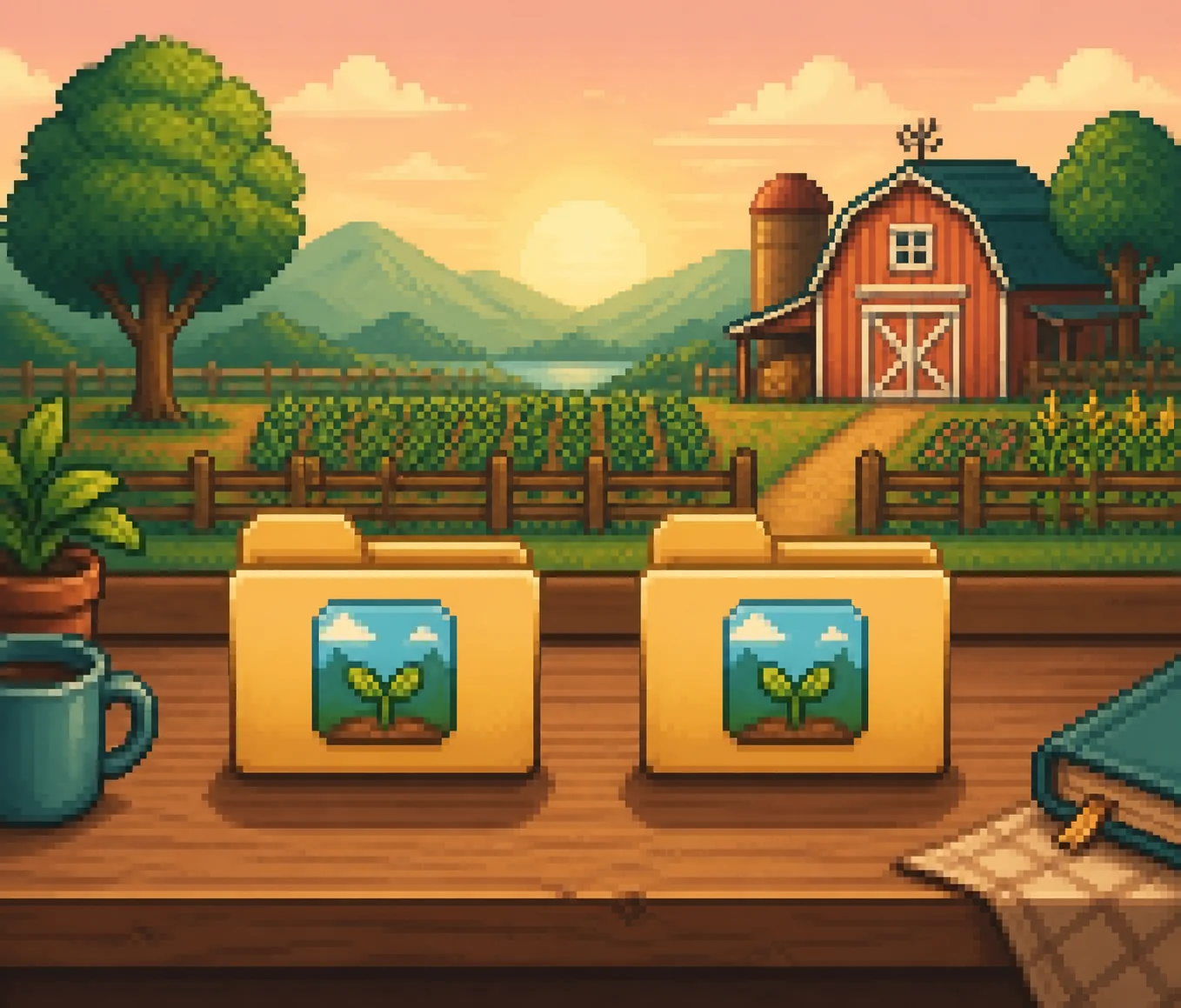
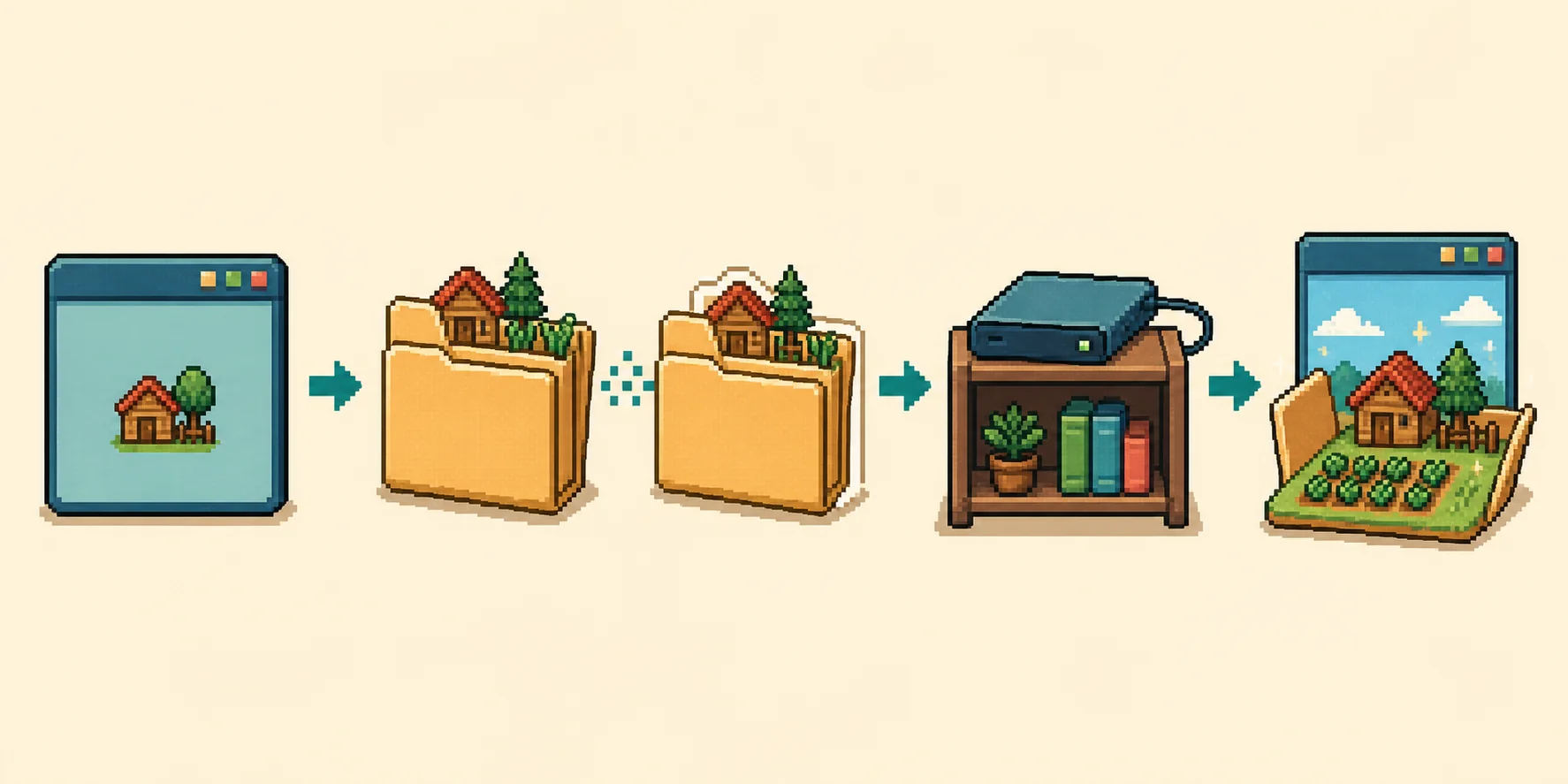
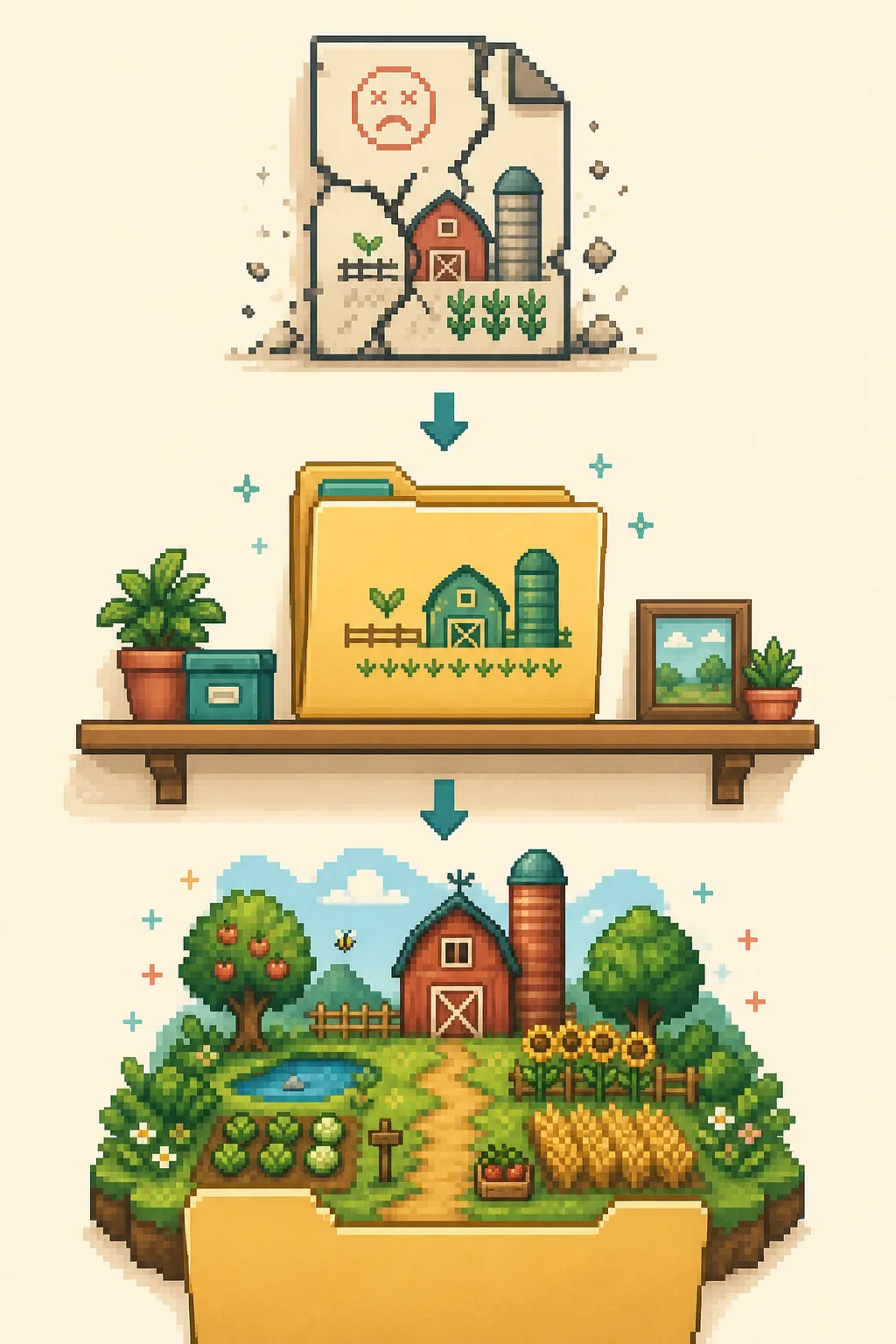
Copy-first multiplayer save workflow; editorial illustration, not an official game screenshot.
QUICK ANSWER
What a Stardew Valley multiplayer save editor actually edits
A Stardew Valley multiplayer save editor works on the host-owned farm file. It can help you inspect or
change supported farm, player, farmhand, cabin, inventory, or progress data in a copied save, but it does
not turn a farmhand's local files into a second independent world. The important first step is identifying
the host copy and preserving every file that belongs to that farm.
Use this page when the question is specifically about a co-op farm: adding or removing a cabin, checking a
farmhand record, understanding who owns the save, or validating a change before the group plays again. The general save editing guide covers the shared import, edit, download, and test sequence. This page adds the multiplayer ownership and
failure boundaries that a general editor overview cannot explain in one paragraph.
KNOW THE FILE
Identify the host save, farmhands, and cabins
The official Stardew Valley Wiki describes the host as the player who created the world. The multiplayer save
file stays on that host player's system, while other players join as farmhands. A cabin is the in-game space
that lets another player join the farm. That relationship matters when you inspect a file: the farm, host,
farmhands, and cabins are parts of one co-op state rather than separate save slots that can be edited in
isolation.
Object
What it represents
Safe check before editing
Host save
The farm file on the computer of the world creator.
Confirm the farm name, latest in-game day, and host identity.
Farmhand
A joining player whose character data belongs to the co-op farm.
Match the farmhand to the expected cabin and player name.
Cabin
A farm building that provides a place for a player to join.
Do not remove a cabin until you know which farmhand uses it.
SaveGameInfo
Companion data used by the load menu.
Keep it with the matching main save; it is not a full farm by itself.
Before selecting a file, open the host's save folder and identify the main file whose name matches the farm
folder. The save files reference explains
why the main file, SaveGameInfo, and matching `_old` files should stay together. If you are on the wrong
computer, the editor cannot discover the farm through a farmhand's login or a cloud lobby.
Keep the host's full farm folder in a dated backup before changing multiplayer data.BACK UP FIRST
Back up a Stardew Valley co-op farm before editing
Close Stardew Valley on the host computer before copying anything. The safest backup is the complete farm
folder, stored outside the active Saves directory with a name such as MeadowFarm-coop-original-2026-11-16. Keep the main file, SaveGameInfo, and any matching
`_old` pair in the same folder. Do not make a backup by copying only the farmhand's visible character data.
1
Stop the game
Let the host finish the normal save, then close the game so it is not writing while files are copied.
2
Copy the folder
Copy the whole farm folder, not just SaveGameInfo or one farmhand record.
3
Label the copy
Use a dated name outside the live Saves path and keep the original read-only in practice.
4
Test the copy
Open the duplicate or load it in a separate test location before replacing the working farm.
If you need the host's folder path, start with the Stardew Valley save file location guide.
For a multiplayer farm, the extra check is ownership: the copy must come from the host device, and every
player should know which dated copy is being tested. That prevents two players from editing different copies
and then trying to merge incompatible changes later.
CONTROLLED EDIT
Edit farmhands and cabins in a controlled copy
After the backup is safe, import the main file from the copied host folder into the Stardew Valley save editor. Use the editor section that matches the
goal and change one related area at a time. A useful baseline is the farm name, host name, current season,
and the farmhand list. Record the old value before you change it so the group can compare the downloaded
copy with the original.
Adding a player or cabin
A cabin is not just a decorative building in a multiplayer save. It is the place associated with a joining
player, so a new cabin may need a matching farmhand entry and a valid character state. If your editor exposes
the relevant farmhand or building controls, make the smallest supported change, download the result, and
let the host test it alone before inviting the whole group. Do not assume that a visible empty cabin means a
new player record is ready.
Removing a farmhand or cabin
Before removing anything, identify the farmhand, cabin, inventory, and relationship data that will no longer
be needed. Keep a separate copy of the pre-edit folder because removal can be difficult to undo from inside
the game. Do not delete a cabin to solve a loading error until you have tested a clean backup; the cabin may
be a symptom of a mismatched copy rather than the cause.
The old GitHub multiplayer editor found in the research results lists farmhand display, add, remove, host-swap,
and storage-swap operations, but its README warns that it predates Stardew Valley 1.5 and may be unstable.
That is useful evidence about search intent, not a recommendation to run an abandoned executable. Prefer the
current browser workflow for supported fields, and stop when a requested multiplayer operation is not exposed.
OWNERSHIP BOUNDARY
Understand host changes and multiplayer ownership limits
Changing who hosts a session is different from changing a character value. The official multiplayer reference
says farm ownership cannot be transferred to a farmhand without modding. A third-party utility may advertise
a host-swap function, but that does not make the result current, supported, or safe for every farm. Treat a
host change as an advanced experiment that needs a full backup and a test copy.
For a normal co-op problem, keep the original host and repair only the supported data that is actually wrong.
If a group is moving a farm between computers, use the save transfer guide to copy the
complete folder. Transfer changes the computer that holds the copy; it does not automatically change the
game's ownership model. If the goal is to play from a different account, verify the platform and mod rules
before touching the save.
Keep the host's original folder until every player has tested the result.
Do not mix a farmhand record from one dated copy with cabins from another.
Do not promise a host transfer when the requested change needs mod support or a different platform workflow.
TEST WITH THE GROUP
Test the exported multiplayer save with every player
A successful browser download is only an output step. Put the edited file in a clearly named test copy on the
host computer, preserve the original filename, and load the farm before replacing the live save. Start with
the host alone so you can tell whether the farm itself loads. Then invite each expected farmhand and check
that the cabin, name, inventory, relationships, and other changed state match the intended result.
Host checkFarm name, season, day, map, and normal save operation.
Farmhand checkCharacter appears in the expected cabin with the expected inventory and skills.
Cabin checkEach cabin has the right occupancy and no duplicate or missing player.
Recovery checkThe untouched original folder still opens if the test copy fails.
Let the test farm complete at least one normal save before you call the edit finished. If the game opens but
fails during the next save, close it, move the edited copy away, and restore the original folder. Do not keep
making random edits to a file that already fails. Repeat with a fresh copy, a single supported field, and a
written before-and-after value. The save recovery guide covers the next
steps when the working farm is missing or damaged.
Move a failed test aside and restore the dated host backup instead of overwriting it.LIMITS AND PRIVACY
Check version, mod, platform, and privacy boundaries
This page is written for a supported Stardew Valley 1.6 XML workflow. Older saves, heavily modded farms,
console exports, and protected mobile storage can behave differently. A parser may load part of a file while
still missing mod-only fields, so a successful import is not a promise that every multiplayer state is safe to
change. Use the editor only on a copy and stop when the UI does not expose a field you can explain.
The browser editor is designed to read the selected file locally in the browser before preparing a download.
That reduces the need to send an irreplaceable host save to a remote service, but it does not remove the need
for your own backup. Keep the original outside the editor folder, avoid sharing private farm data in screenshots,
and do not publish a save file that contains names or other information your group wants to keep private.
The legacy project is cited to explain the older search landscape and its farmhand/cabin terminology. Its own
README warns that it predates Stardew Valley 1.5, so this page does not treat it as a current download or a
compatibility guarantee.
QUICK ANSWERS
Stardew Valley multiplayer save editor FAQ
Where is a Stardew Valley multiplayer save stored?
The multiplayer save is stored on the host player's computer. The host is the player who created the world, so a farmhand usually cannot open the farm from their own save folder unless the host sends a compatible copy.
Can I use a Stardew Valley multiplayer save editor for a farmhand?
You edit the host-owned farm save, then the farmhand data is loaded as part of that farm. Work from a copy and keep the host save, farmhand records, and matching cabin data together. A farmhand is not a separate full farm save.
Can I change the host of a Stardew Valley farm?
The official multiplayer reference says farm ownership cannot be transferred to a farmhand without modding. Some older third-party editors offered host-swap features, but those tools may be outdated. Treat a host change as an advanced, unverified operation and keep the original folder untouched.
How do I back up a co-op save before editing it?
Close the game, copy the entire farm folder from the host computer, and store the copy outside the active Saves folder. Keep the main file, SaveGameInfo, and any matching backup pair together. Test the copy before replacing the working save.
Will a multiplayer save editor work with mods or console saves?
Compatibility depends on the file format, game version, mods, and platform. This browser editor targets supported Stardew Valley 1.6 XML. Console exports, protected mobile data, older versions, and mod-only fields should be tested on a disposable copy or left unchanged.
What should I do if the edited co-op farm will not load?
Close Stardew Valley, move the edited copy out of the active folder, and restore the untouched host backup with its original name. Do not keep saving a file that fails. Repeat with a fresh copy and one smaller, supported change only after the original farm loads.
This is an independent community project. It is not affiliated with ConcernedApe or Stardew Valley. Always
keep a manual backup of the host save before editing.