Stardew Valley Save Recovery for a Missing or Broken Farm
For Stardew Valley save recovery, stop the game and protect the complete farm folder before trying fixes. Check the right account and save location, keep the main save with SaveGameInfo, then test the paired _old files or a SMAPI backup on a copy. Never overwrite the only farm copy while investigating.
A conceptual illustration for this recovery guide, not an official Stardew Valley screenshot.
START HERE
Protect the farm before testing a recovery
1
Close Stardew Valley
Wait until the game has closed so it is no longer writing to the save files.
2
Copy the full farm folder
Keep the main farm file and SaveGameInfo together, and store this untouched copy outside the active Saves folder.
3
Name the symptom
Separate a missing farm slot from a farm that appears but will not load; the first checks differ.
4
Work from a second copy
Try an _old pair or a dated SMAPI backup only after keeping the current files safe.
DIAGNOSE THE SYMPTOM
Is the farm missing, or does it fail to load?
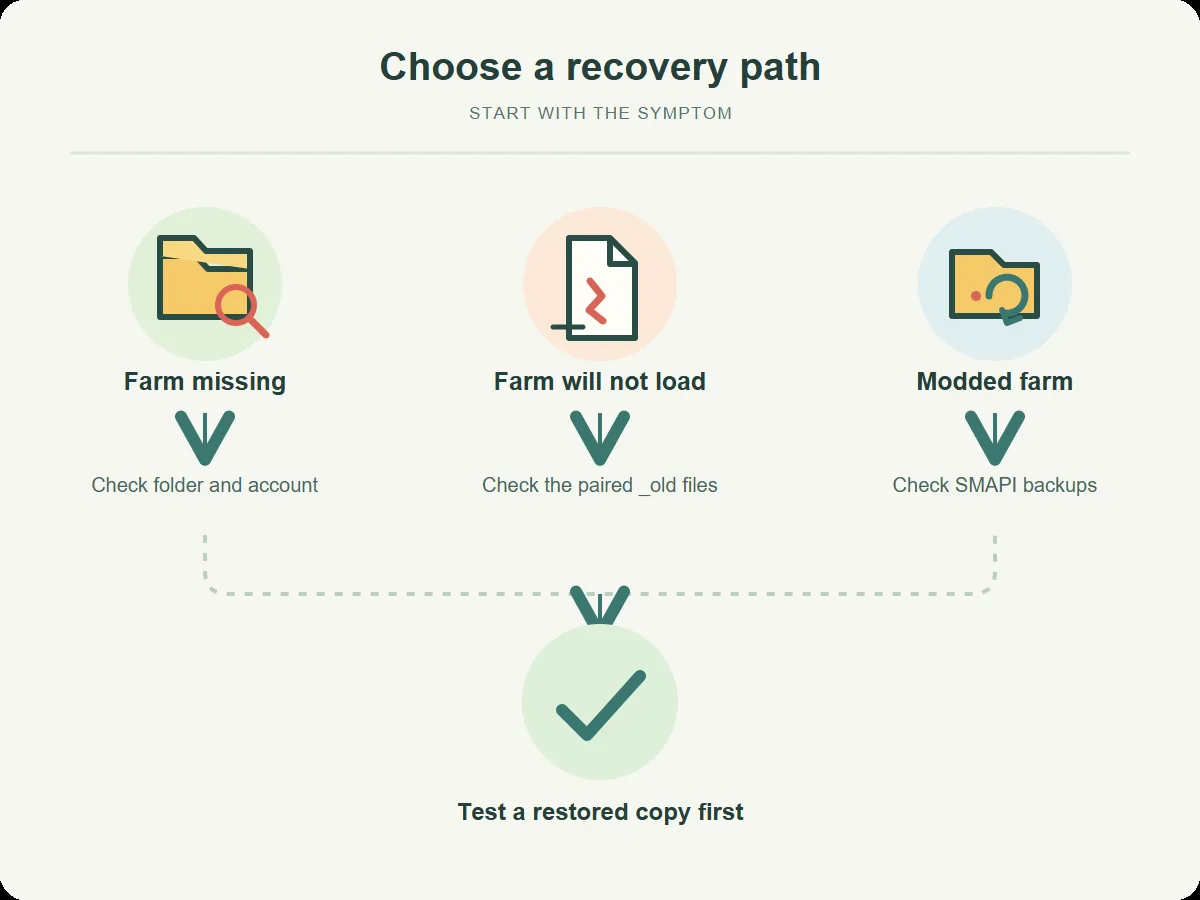
If the farm is absent from the load list, check the operating-system account, game installation, and expected save folder. A different login, moved folder, or incomplete device export can make files appear missing. Confirm the location before changing filenames.
If the farm appears but will not open, preserve its full folder and note what changed before the failure: an update, edit, transfer, or mod change. Do not keep retrying the same files.
For a modded farm, test with the same game and mod setup that last opened it. On mobile or console, do not assume desktop filenames, SMAPI backups, or PC restore steps apply; use the platform's export guidance.
FIRST CHECKS
Choose a safe first check for the problem you see
Symptom
Check first
Next safe action
Farm is missing
Account, installation, and expected Saves folder
Look for the complete farm folder before creating or renaming anything.
Farm appears but will not open
Recent update, transfer, edit, or mod change
Preserve the current folder and test an older copy.
Farm rolled back a day
Matching files with an _old suffix
Copy the current pair elsewhere, then test the older pair.
Modded farm stopped loading
SMAPI backup folder and the last working mod setup
Restore a dated backup copy and test it with the matching setup.
Only a phone or console copy exists
The platform's own export and backup options
Avoid applying desktop-only rename instructions.
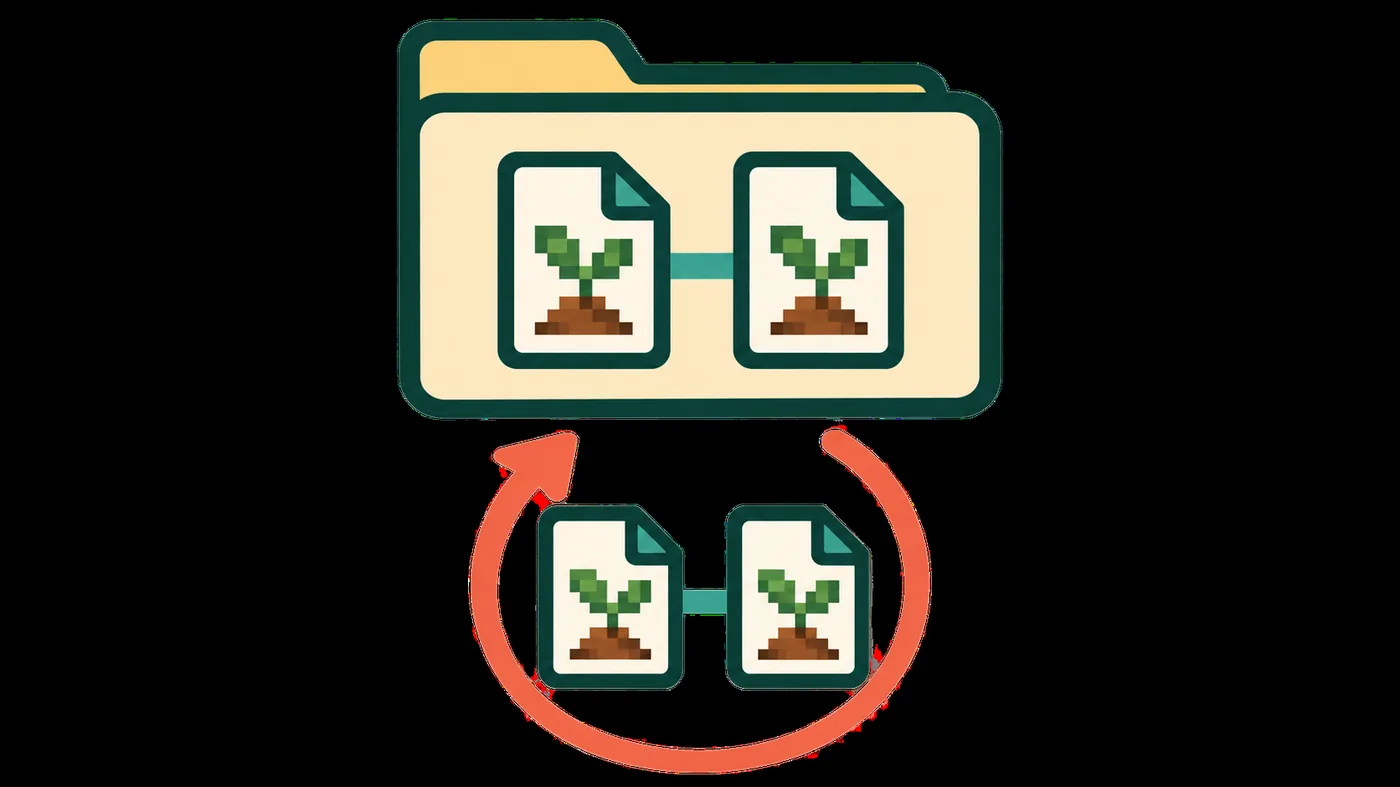
The main farm file and SaveGameInfo belong together; the diagram is illustrative, not a file-manager screenshot.CHECK THE FILE PAIR
Make sure the main save and SaveGameInfo match
A normal save folder contains a main file named after the farm folder and a second file named SaveGameInfo. The Stardew Valley Wiki says both are needed to load the save. Do not treat SaveGameInfo by itself as a recoverable farm, and do not mix a main file from one backup with the companion file from another date.
On desktop, compare folder names and dates without moving anything first. If you need help finding the platform folder, use the save-file location guide linked below. On iOS, the Wiki documents a different recovery suffix, _SVBAK; that is a reason to stop before applying desktop _old rename steps to a mobile save.
DESKTOP _OLD RECOVERY
Test the previous save pair without losing today's files
1
Copy the current folder out
Close the game and copy the entire affected farm folder to a dated location outside Saves.
2
Look for both older files
Check for the main farm file ending in _old and for SaveGameInfo_old in the same folder.
3
Keep the names paired
On a separate working copy, remove _old from both filenames so the base names match the farm folder.
4
Open the restored copy
Launch the game and check that the intended farm and recent progress appear before continuing play.
The Wiki describes the _old files as a way to undo the last save. They may therefore return the farm to an earlier in-game day. Keep the current pair outside Saves so you can compare or restore it if the older copy is also damaged.
NO _OLD FILES?
Check another backup source before editing files
If one _old file is missing or the pair does not match, stop instead of filling gaps with another save. Compare complete dated folders with the same farm name. Keep backup folders outside Saves: the Wiki warns the game may try to load extra folders as farms.
SaveGameInfo alone cannot reconstruct a missing main file. Check the Recycle Bin or an operating-system backup only if you used one, and keep a recovered folder outside the active game folder until both expected files are present.
A compact troubleshooting map. The labels summarize the guide and are not a game screen.SMAPI BACKUPS
Restore a dated SMAPI backup when the mod loader is installed
SMAPI creates daily save backups automatically, and the Stardew Valley Wiki says they can be retrieved from Mods/SaveBackup. This option is relevant when the affected installation uses SMAPI; do not expect the folder on a setup that never installed it. Choose a backup from before the problem began and copy it somewhere separate before opening or extracting it.
Restore the backup as a working farm copy, keeping its main file and SaveGameInfo together. Do not place a stack of backup folders in the live Saves directory, and do not delete the original SMAPI archive after a successful test. If the recovery works, create a fresh separate backup before making more changes to the modded farm.
CLOUD AND DEVICE COPIES
Handle cloud conflicts by preserving both versions
When cloud sync or a device transfer may have replaced the save, stop launching the game and keep each local or downloaded copy separate. Compare farm names, dates, and both expected files; a later timestamp alone does not prove a copy is healthy. Test one copy while leaving the other untouched.
VERIFY BEFORE RESUMING
Confirm the recovered farm before trusting it
1
Check identity
Confirm the farm name and farmer are the ones you intended to recover.
2
Check progress
Look for the expected season, day, and familiar progress before advancing time.
3
Check both files
Keep the main save and SaveGameInfo together in the restored farm folder.
4
Back up the result
Once the copy opens correctly, make a new dated copy outside Saves before editing.
First check the correct game account and save folder, then look for a complete dated copy, paired _old files, or a SMAPI backup if SMAPI is installed. Keep the original folder untouched while checking.
What are the _old files in a Stardew Valley save folder?
The Stardew Valley Wiki says files with an _old suffix can undo the last save. On desktop, preserve the current folder first and test the matching older main file and SaveGameInfo_old together on a copy.
Where are SMAPI save backups stored?
The Stardew Valley Wiki says SMAPI creates daily save backups and stores them in Mods/SaveBackup. Copy a dated backup elsewhere before testing it, and keep its farm files together.
Can I restore a Stardew Valley save with SaveGameInfo alone?
No. The normal save folder needs both the main farm file and SaveGameInfo. Keep the matching files from one copy together; the companion file alone is not a complete farm save.
Do the desktop _old steps work on iPhone or console?
Do not assume so. The Wiki documents an _SVBAK suffix for iOS, while console and mobile file access differ from desktop. Use the platform's supported backup or export route instead of renaming files blindly.
This is an independent community project. It is not affiliated with ConcernedApe or Stardew Valley. Always keep a manual backup of your save.